Semibold logo
Our work
Services
About
Blog
Contact
Contact
Contact
cs
en
Czech
English
left arrow (back)
All tutorials
All tutorials

How to sign up in ClickUp

Signing up to ClickUp and initial settings

Registration

Accept the invitation we had sent to your email: click Accept Invite.

Step 1: Accept the invitation we had sent to your email: click Accept Invite.

Fill in your name, choose a password, accept the terms and conditions and click Join Workspace.
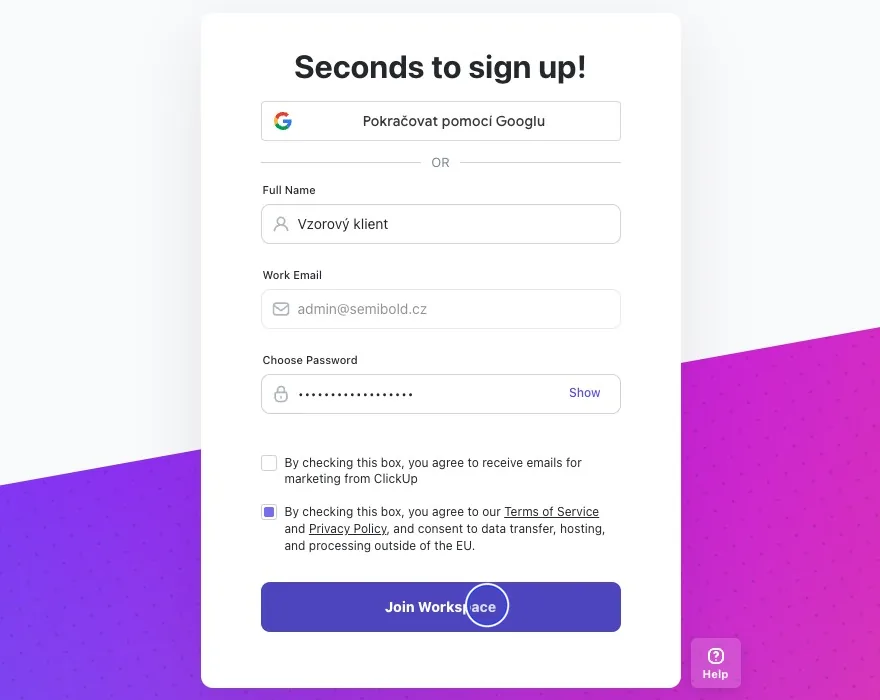
Step 2: Fill in your name, choose a password, accept the terms and conditions and click Join Workspace.

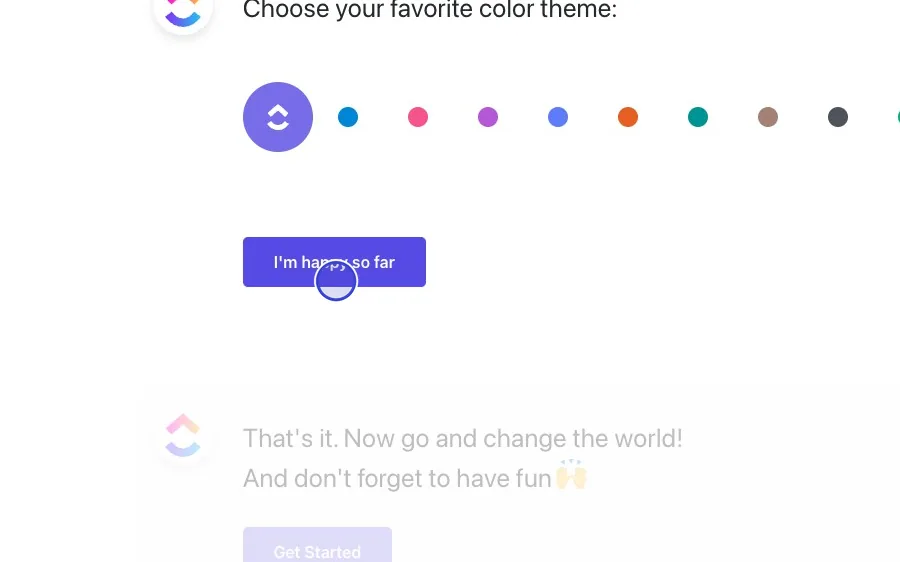
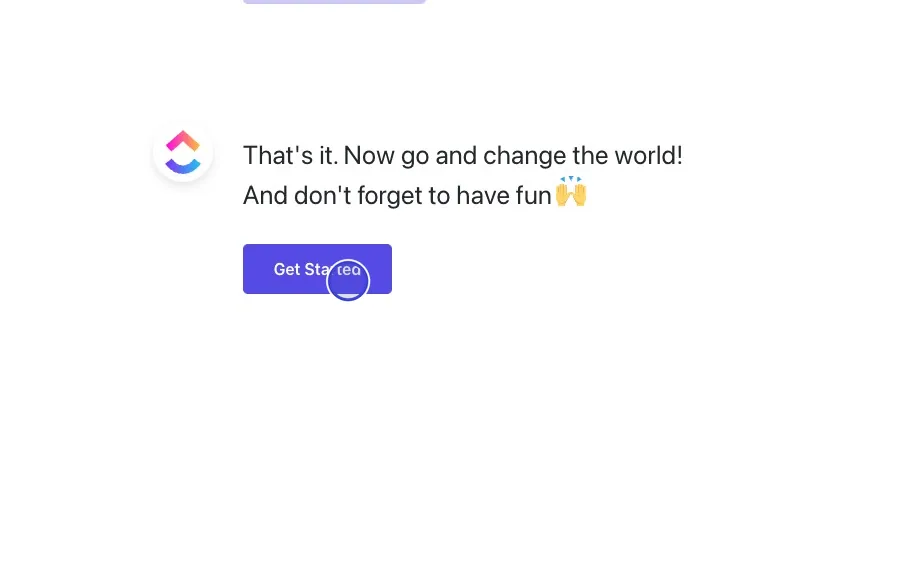
Go through a short onboarding.

Click Yes, join Near&Dear Group, Let's do it!, I'm happy so far and Get Started one after another.
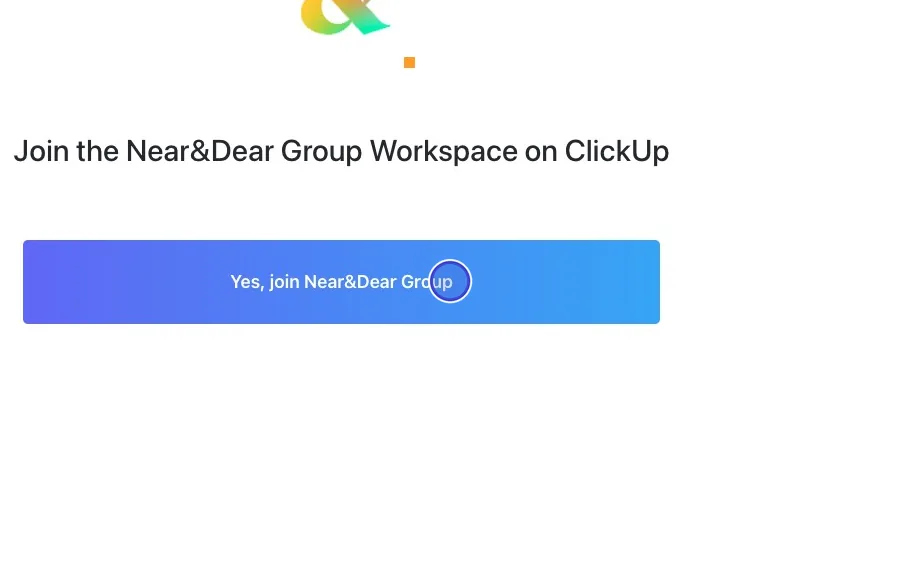
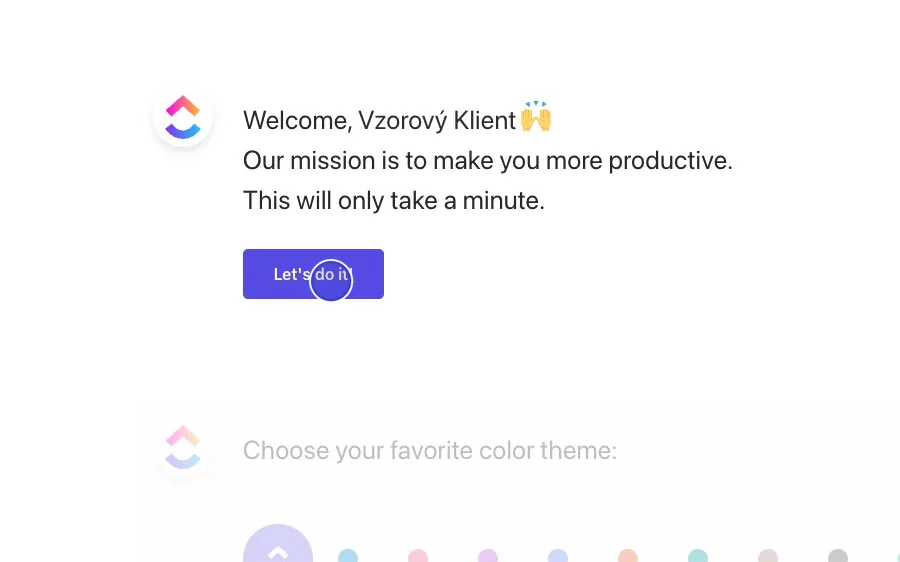
Step 3: Go through a short onboarding.

Notification settings

In the following steps, we recommend adjusting the notifications you get by email. ClickUp also keeps all notifications in Inbox. You can open it from the left sidebar at any time to see detailed activity.

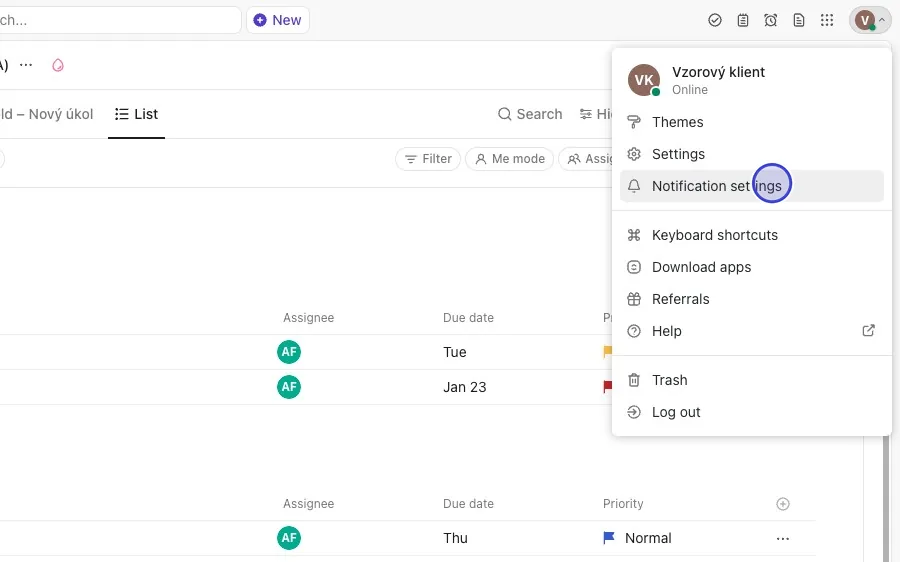
In the top right corner, click your avatar and choose Notification settings.
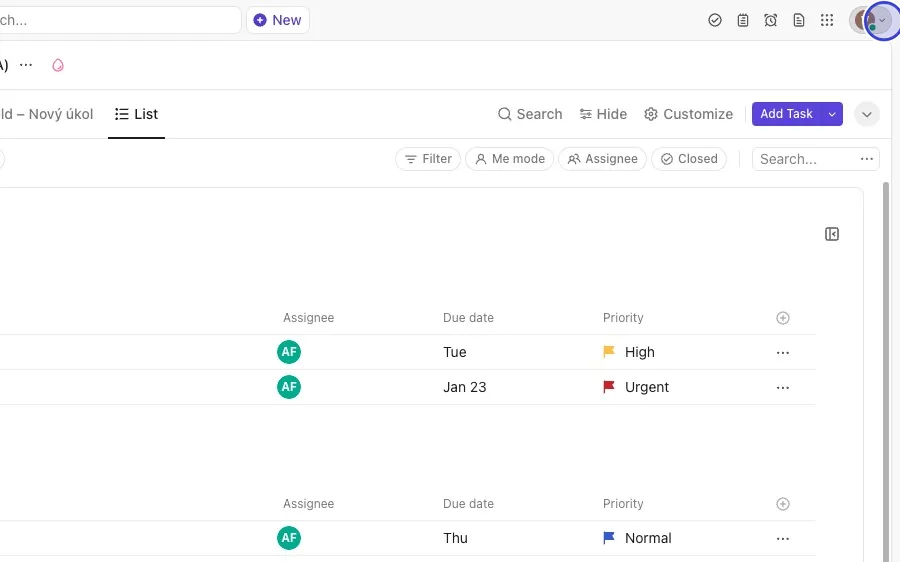
Step 4: In the top right corner, click your avatar and choose Notification settings.

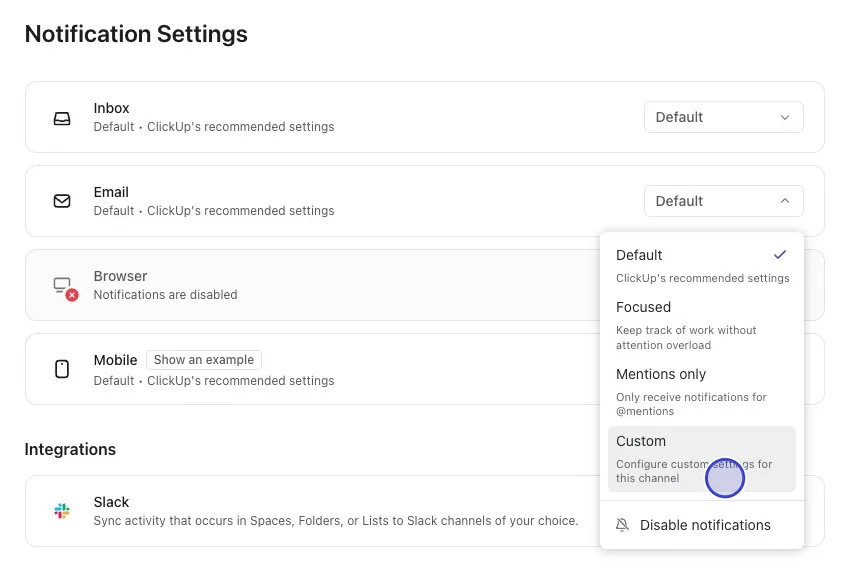
For email notifications (Email), open the Default menu and choose Custom.

Step 5: For email notifications (Email), open the Default menu and choose Custom.

Expand Task comments and switch off what you do not need, for example Assigned comments, Resolved comments and Reactions.

It is important to get a notification when someone mentions you in a comment (Comments I'm @mentioned in). You can set up the rest as you prefer.
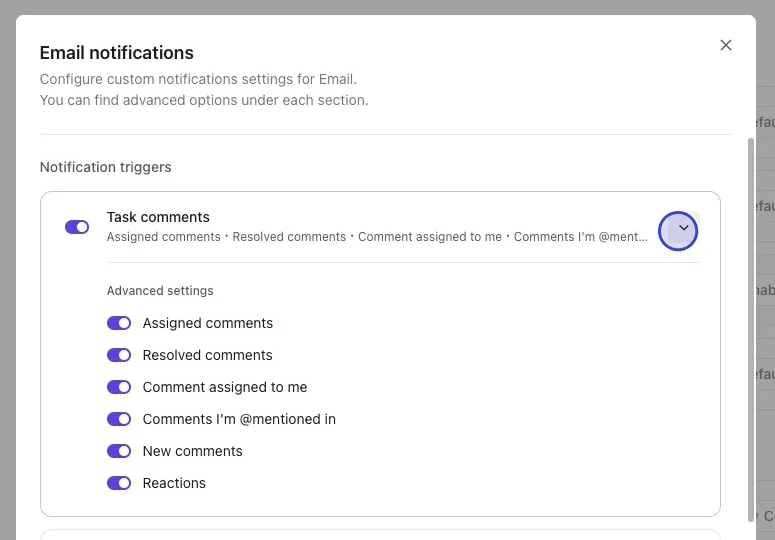
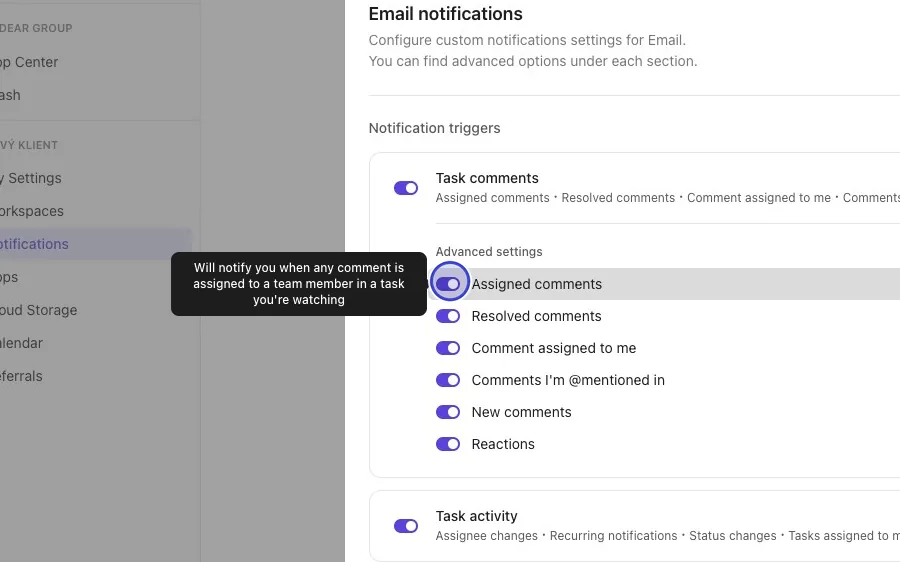
Step 6: Expand Task comments and switch off what you do not need, for example Assigned comments, Resolved comments and Reactions.

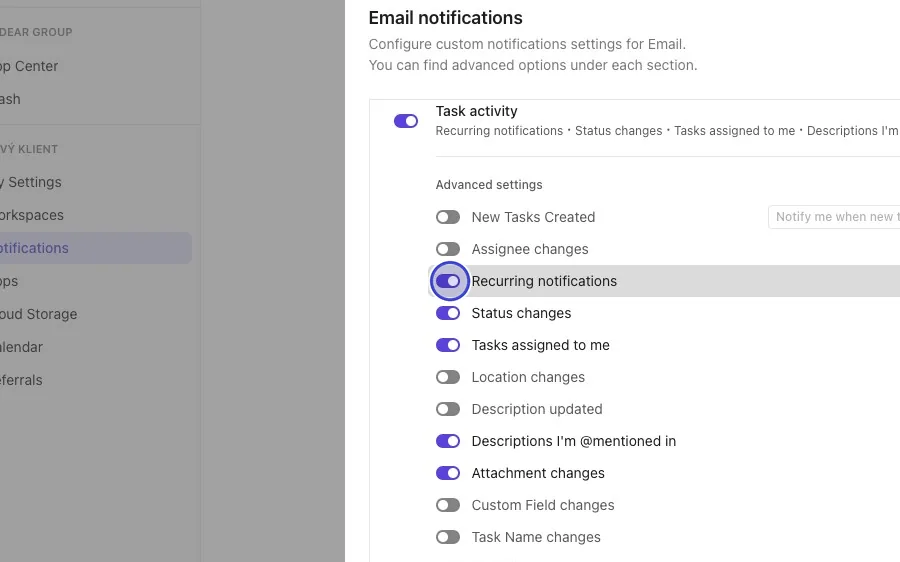
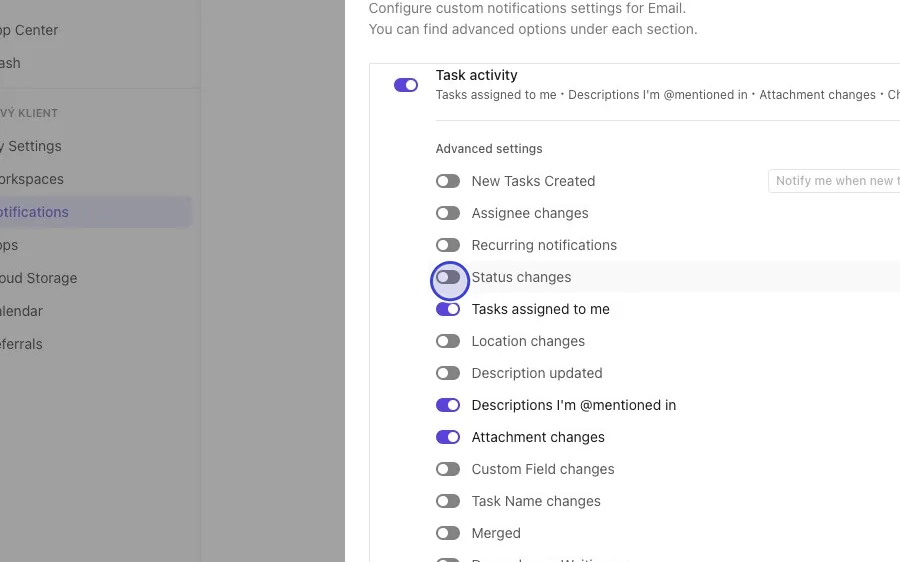
Expand Task activity and switch off Assignee changes, Recurring notifications, Status changes and Attachment changes.

We always mention you, automatically or manually, when we need your input. That is why you do not need an email about every change to a task.
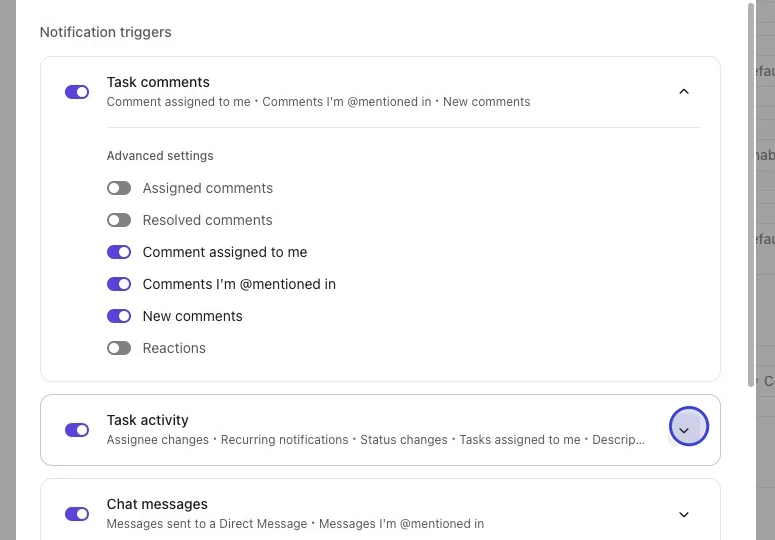
Step 7: Expand Task activity and switch off Assignee changes, Recurring notifications, Status changes and Attachment changes.

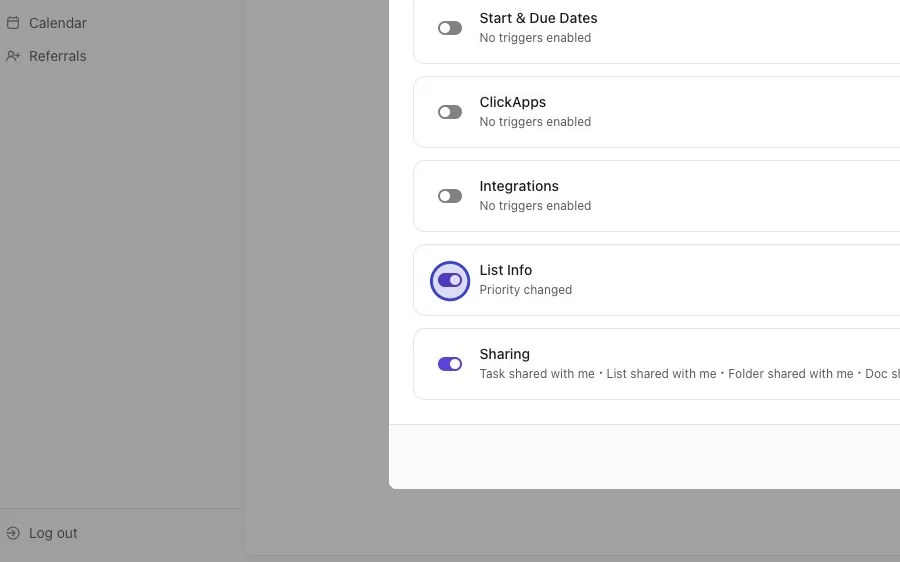
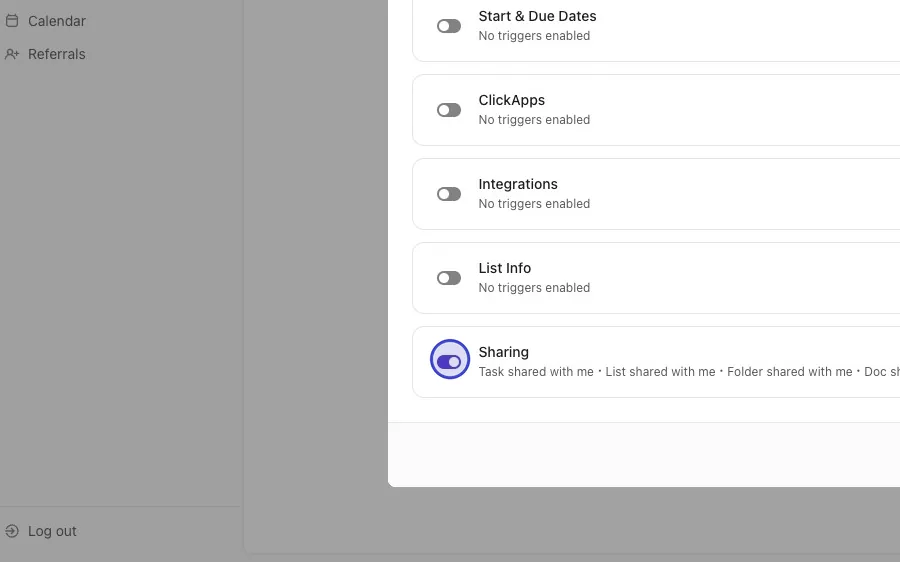
Switch off other notifications you do not need too, for example Start & Due Dates, ClickApps, Integrations, List Info and Sharing.
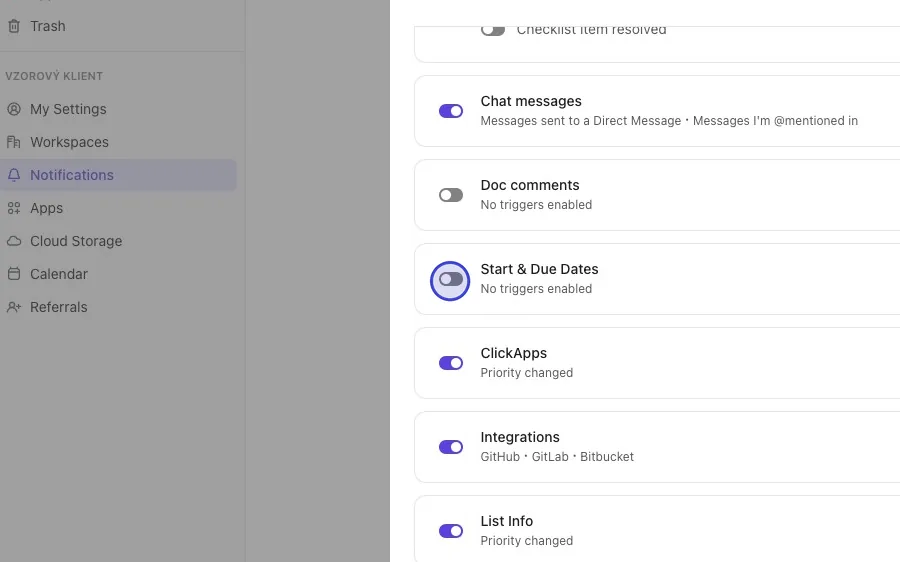
Step 8: Switch off other notifications you do not need too, for example Start & Due Dates, ClickApps, Integrations, List Info and Sharing.
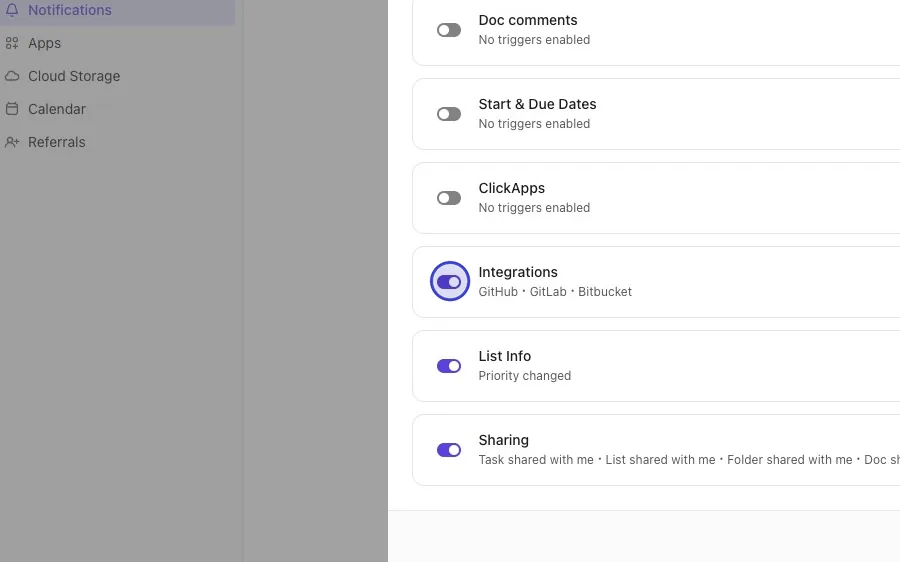

Click Save.

Step 9: Click Save.

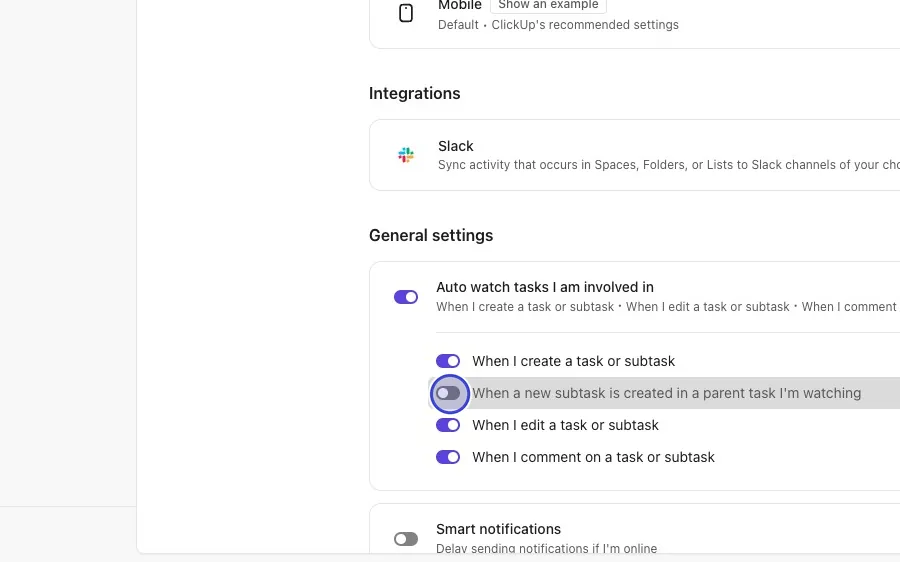
Expand Auto watch tasks I am involved in and switch on When a new subtask is created in a parent task I'm watching.

On the other hand, it can be useful to know about a new subtask.
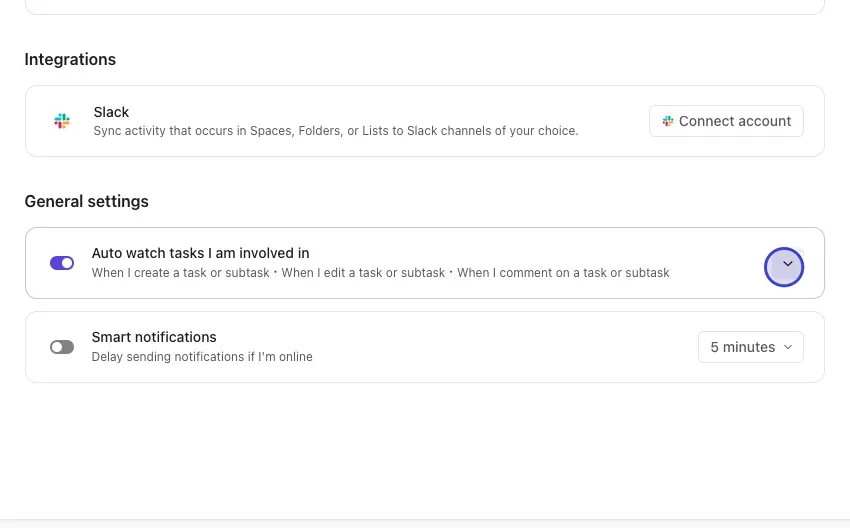
Step 10: Expand Auto watch tasks I am involved in and switch on When a new subtask is created in a parent task I'm watching.

When your preferences are set, go back to the home page: click Back to Workspace in the top left corner.
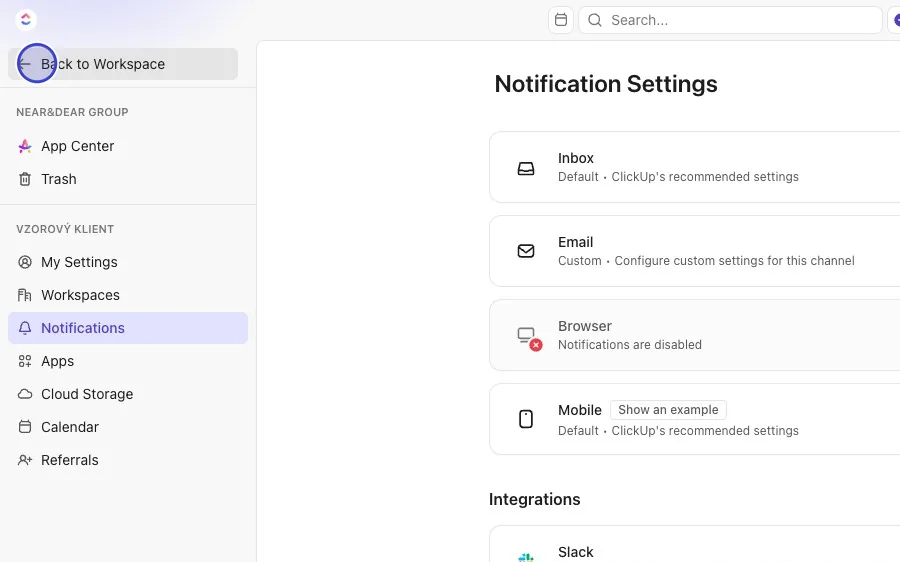
Step 11: When your preferences are set, go back to the home page: click Back to Workspace in the top left corner.

Adjusting the home page

The following steps set up the Home page so that it shows all tasks assigned to you. Work usually goes both ways and we also assign tasks to you when we need feedback on our output.

It can be handy to have your whole agenda in one place.

Choose Home in the left sidebar.
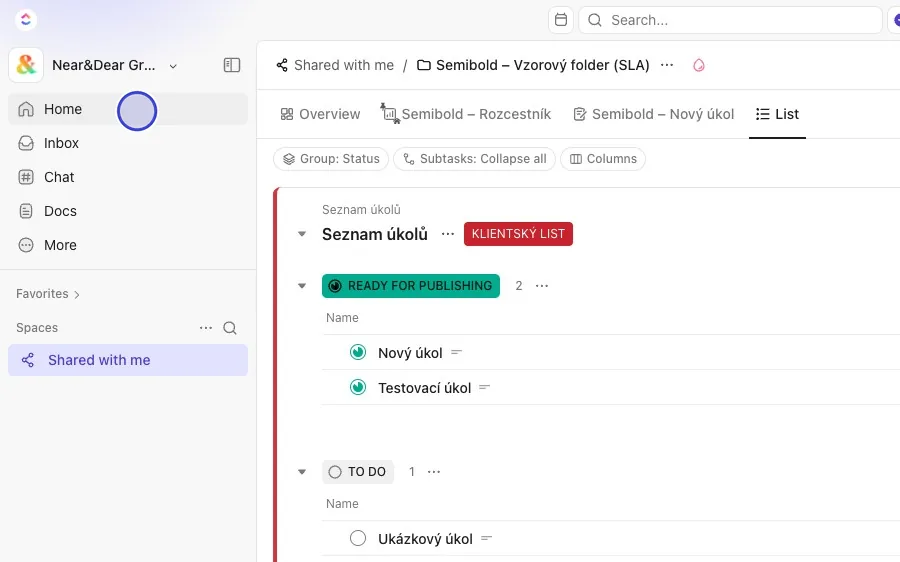
Step 12: Choose Home in the left sidebar.

In the top right corner, click Manage cards.
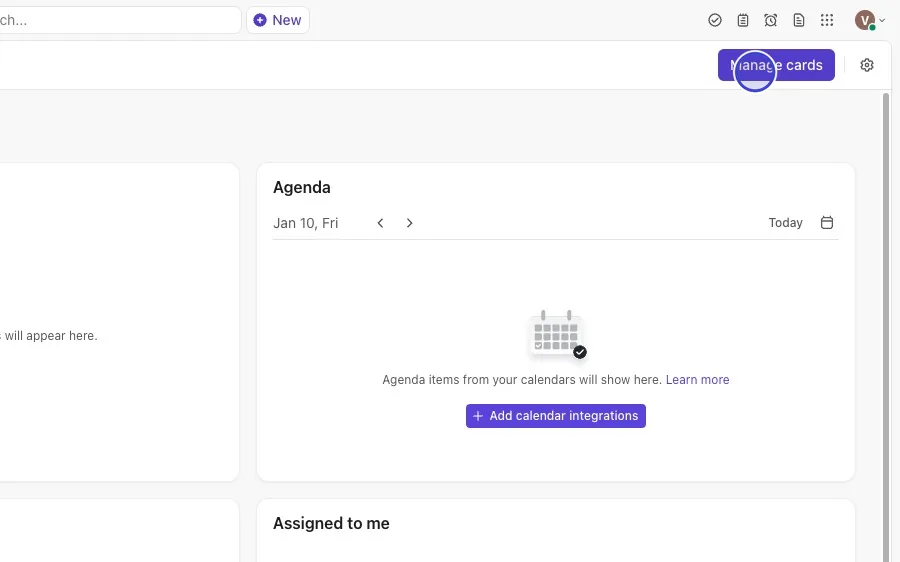
Step 13: In the top right corner, click Manage cards.

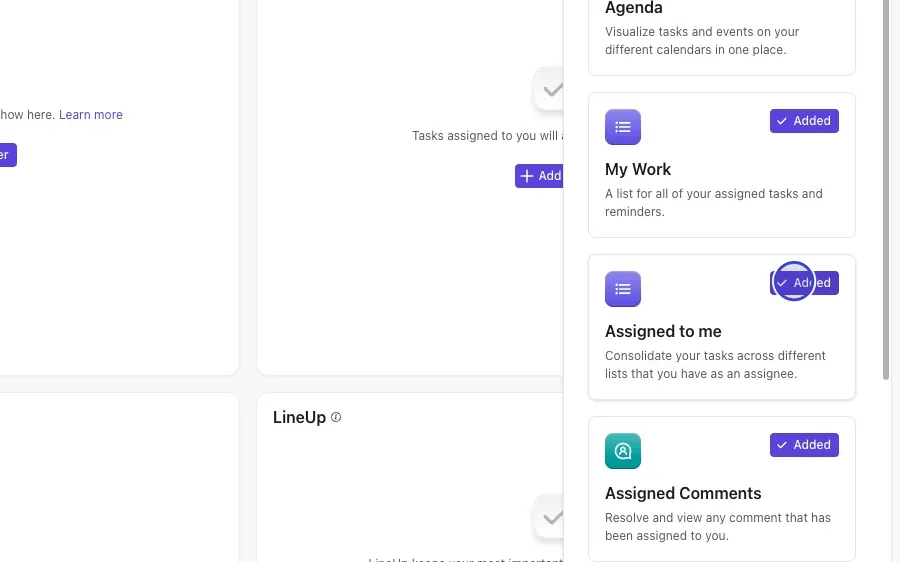
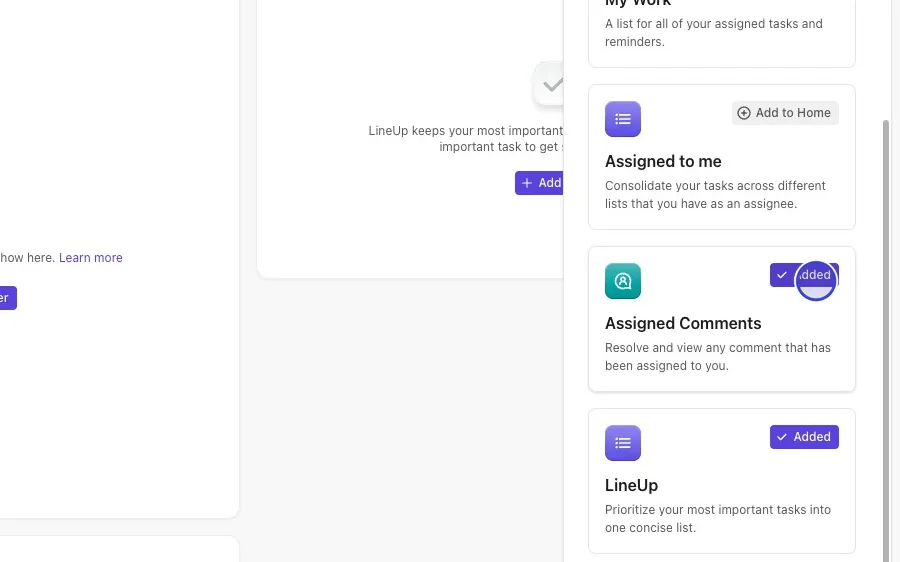
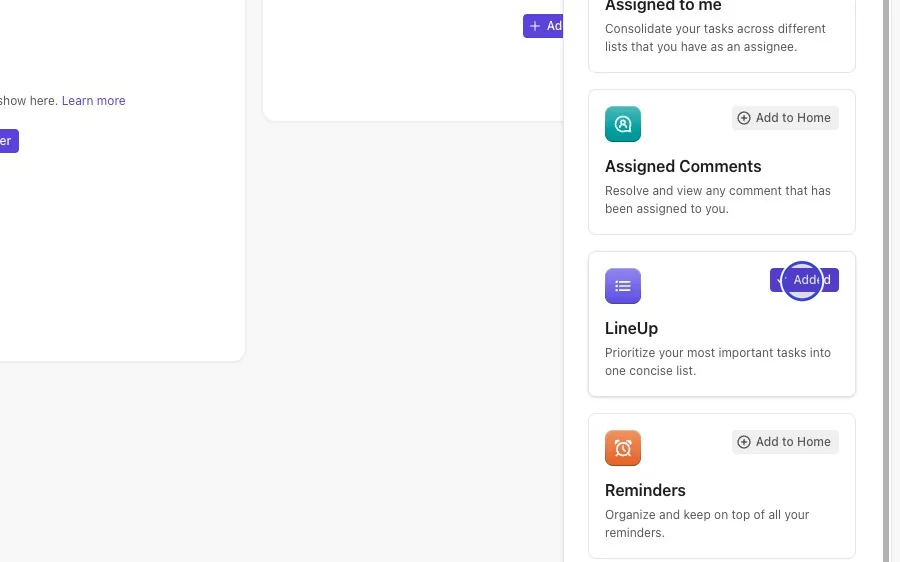
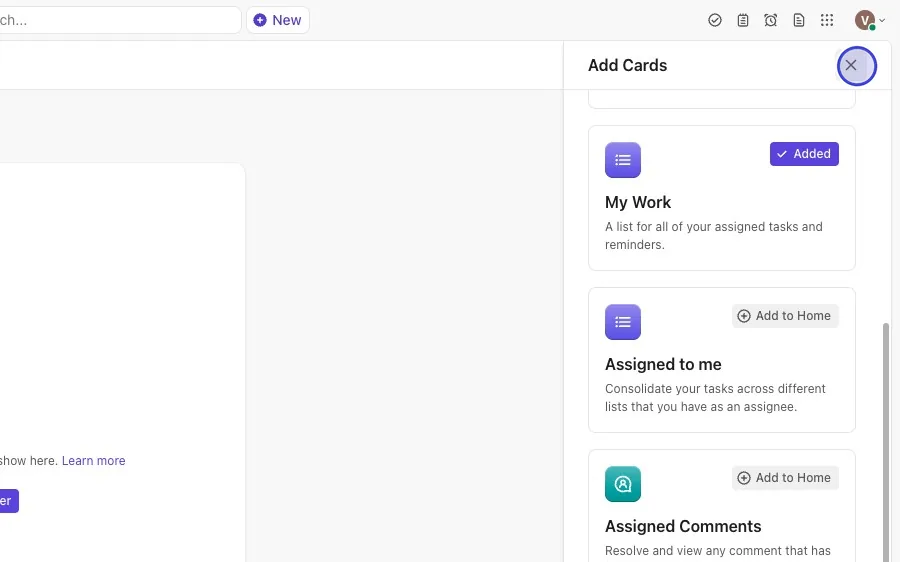
Use the Added button to remove all cards except My Work, then close the menu with the cross in the top right corner.
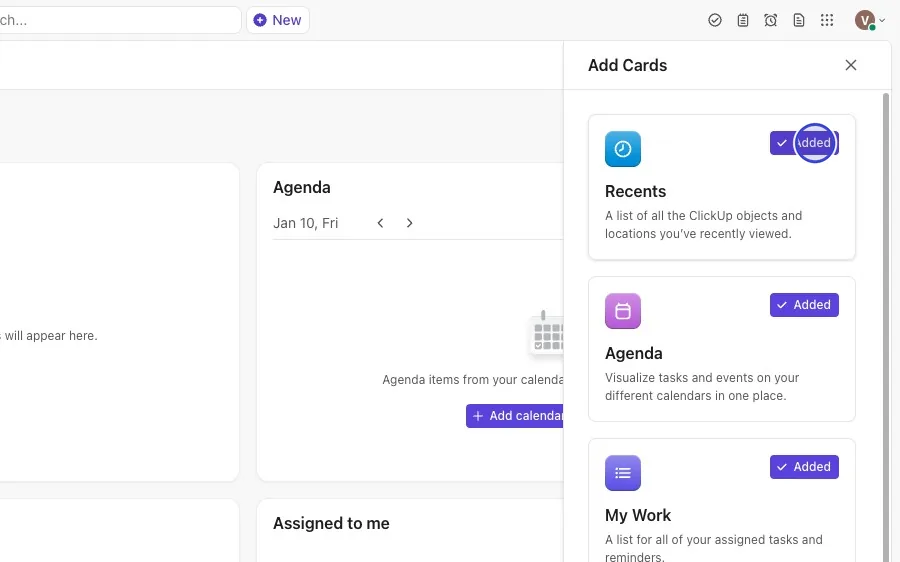
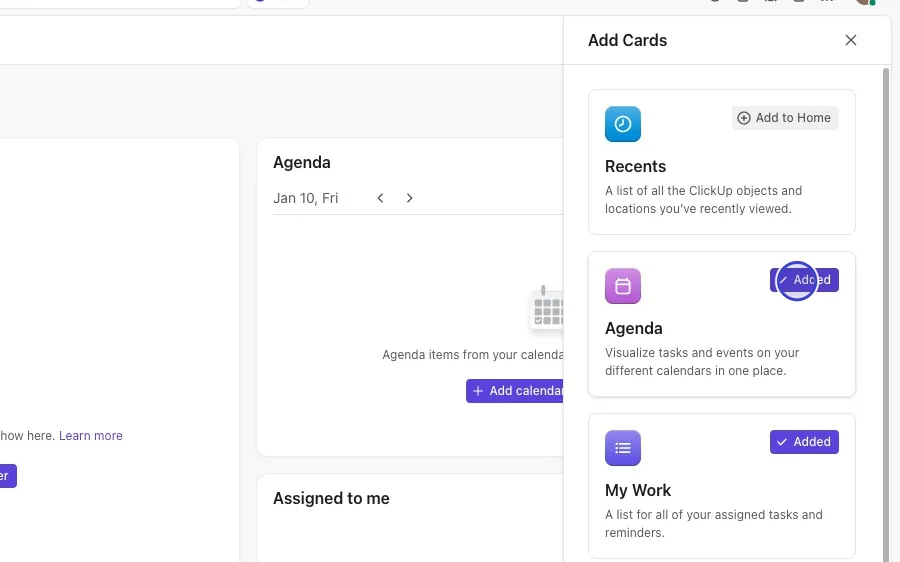
Step 14: Use the Added button to remove all cards except My Work, then close the menu with the cross in the top right corner.
The Home page will now show only the work expected from you.

Do you need a design?
Let us know

Contact us
Contact us
Semibold
Our workAboutContact
Services
Webflow design & developmentWebsite growth & maintenanceWordPress to Webflow migrationDesign maintenanceBranding
Know-how
TutorialsBlog
Other
Terms and conditions – GeneralTerms and conditions – RetainerPrivacy policyCookies
We are a
Webflow Certified Partner
in Czechia
We are part of Near & Dear