Semibold logo
Our work
Services
About
Blog
Contact
Contact
Contact
cs
en
Czech
English
left arrow (back)
All tutorials
All tutorials

How to Use the Flycut App

Instructions for installing and using the Flycut App (Mac OS)

Installing and launching

Find the Flycut app on MacUpdate.
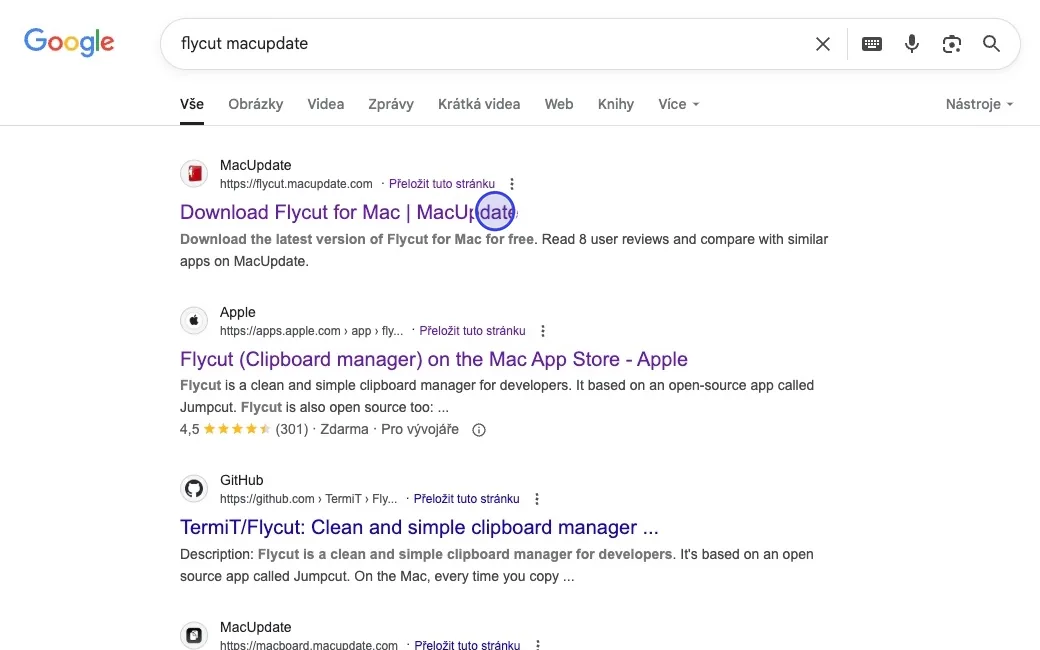
Step 1: Find the Flycut app on MacUpdate.

Click Download to download the app.
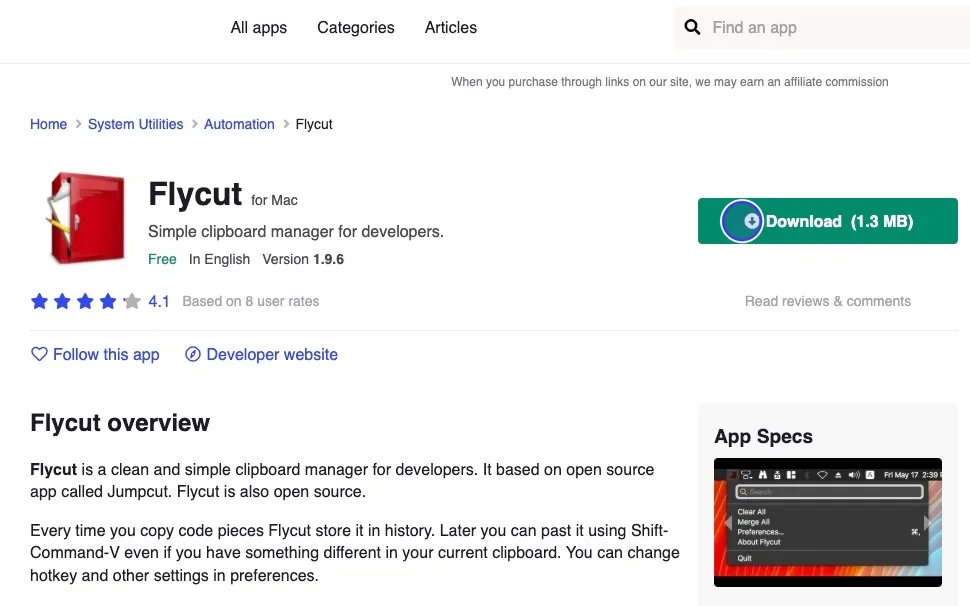
Step 2: Click Download to download the app.

Open Finder, find the downloaded Flycut .zip file and unzip it with a double click.
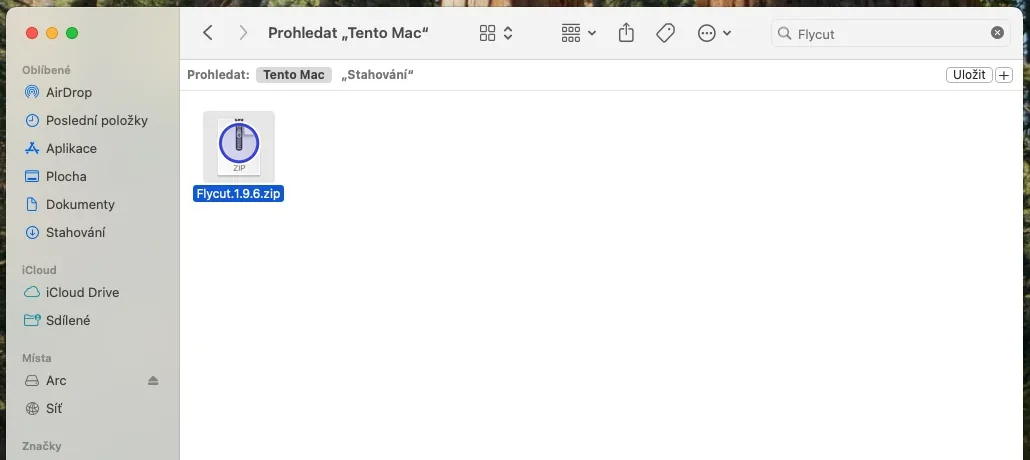
Step 3: Open Finder, find the downloaded Flycut .zip file and unzip it with a double click.

Launch Flycut by double clicking its icon.

The app runs in the background.
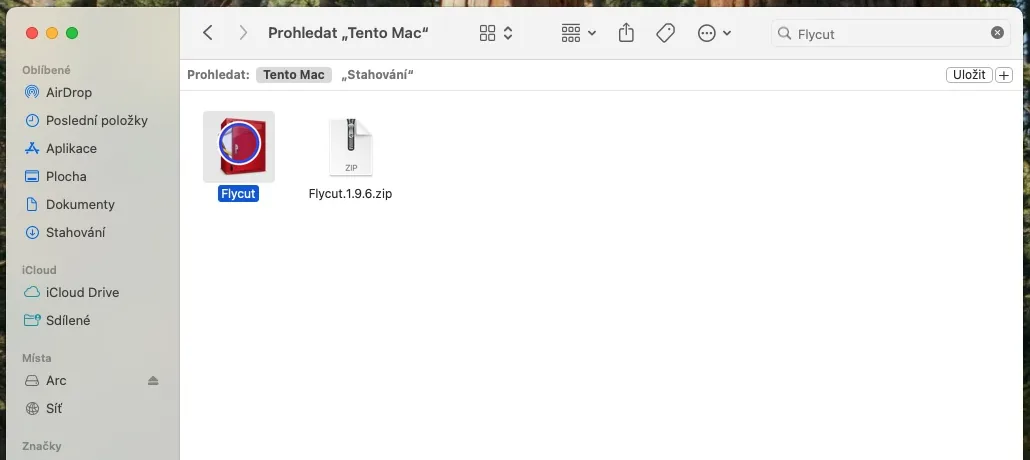
Step 4: Launch Flycut by double clicking its icon.

Copying and pasting

Copy the texts you want to keep in the Flycut history one by one.
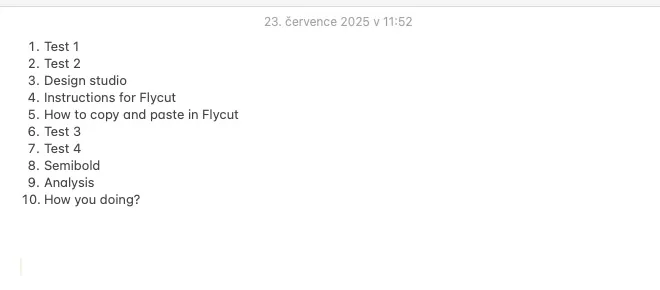
Step 5: Copy the texts you want to keep in the Flycut history one by one.

Click the Flycut icon in the menu bar.

You will see the last 10 copied texts.
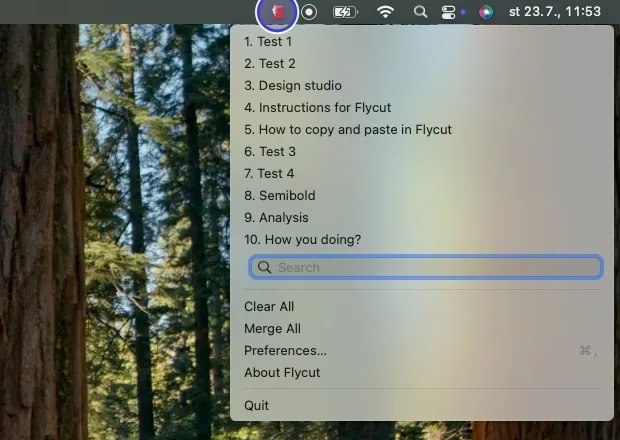
Step 6: Click the Flycut icon in the menu bar.

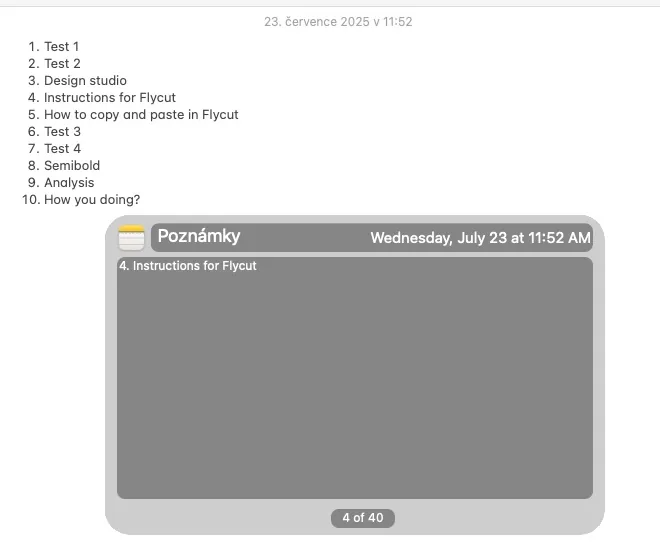
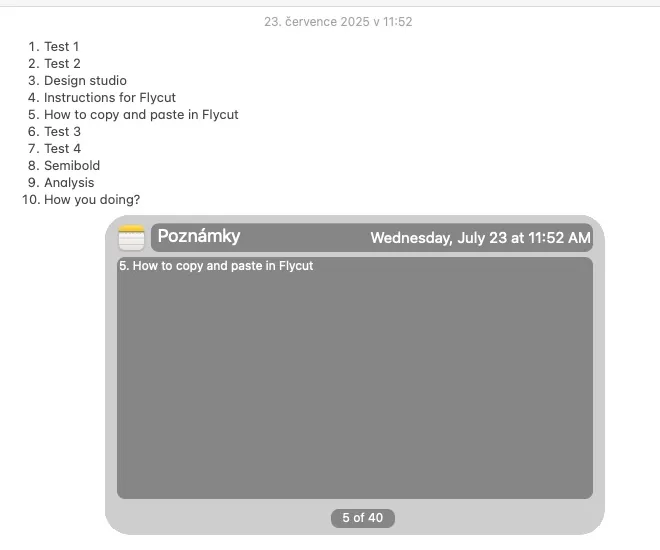
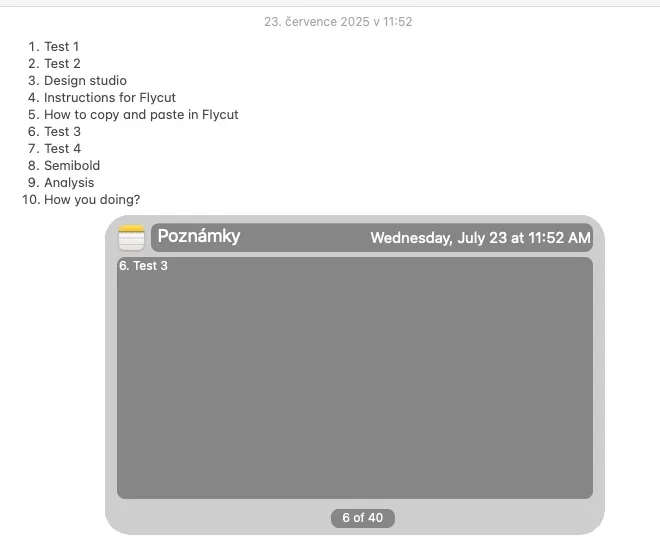
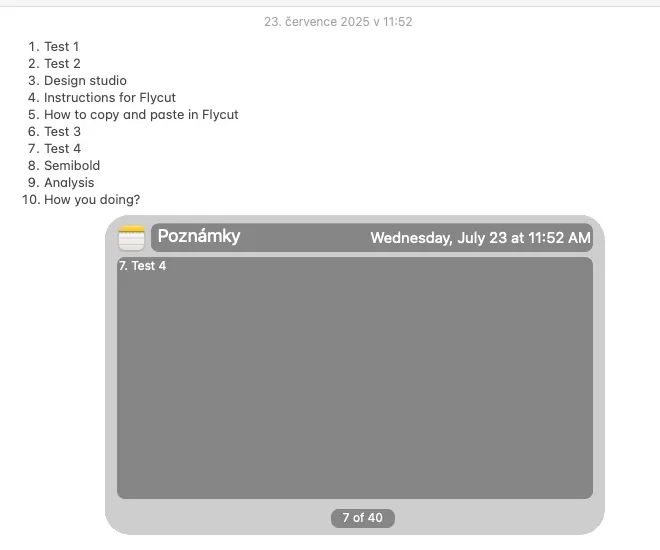
Hold cmd + shift + v and use the arrow keys ← and → to choose the text you want to paste.

When you press the keys, a window with your clipboard history appears. As soon as you release the keys, the selected text is pasted.
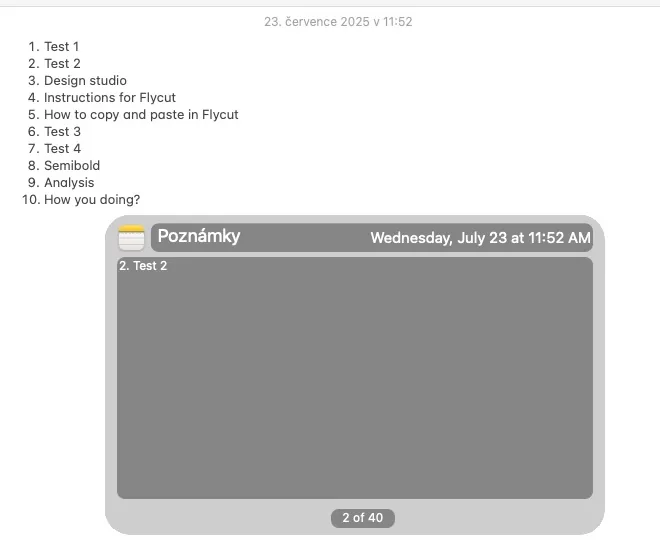
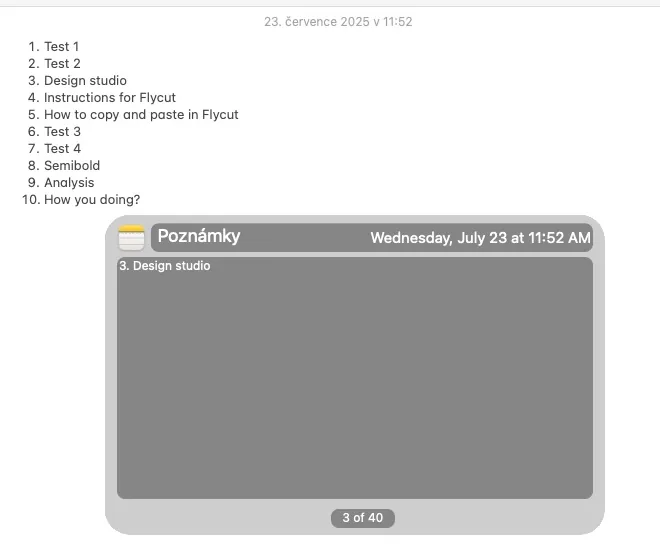
Step 7: Hold cmd + shift + v and use the arrow keys ← and → to choose the text you want to paste.

To change the text you paste with cmd + v, use cmd + shift + v again or copy a new text with cmd + c.
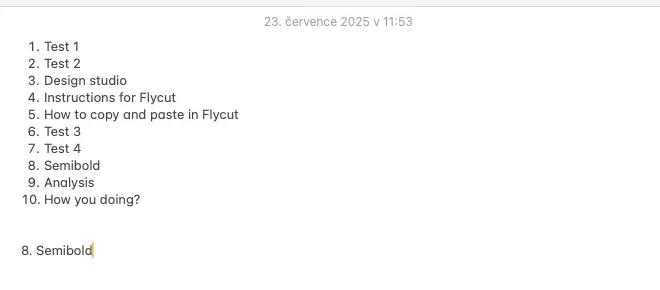
Step 8: To change the text you paste with cmd + v, use cmd + shift + v again or copy a new text with cmd + c.

App settings

Click the Flycut icon in the menu bar and open the settings with Preferences….

Step 9: Click the Flycut icon in the menu bar and open the settings with Preferences….

Adjust the app to your needs.

For example, how many items to keep in the history (Remember), whether the app starts when you log in (Launch Flycut on login) or how many history items you see after clicking the menu bar icon (Display in menu).
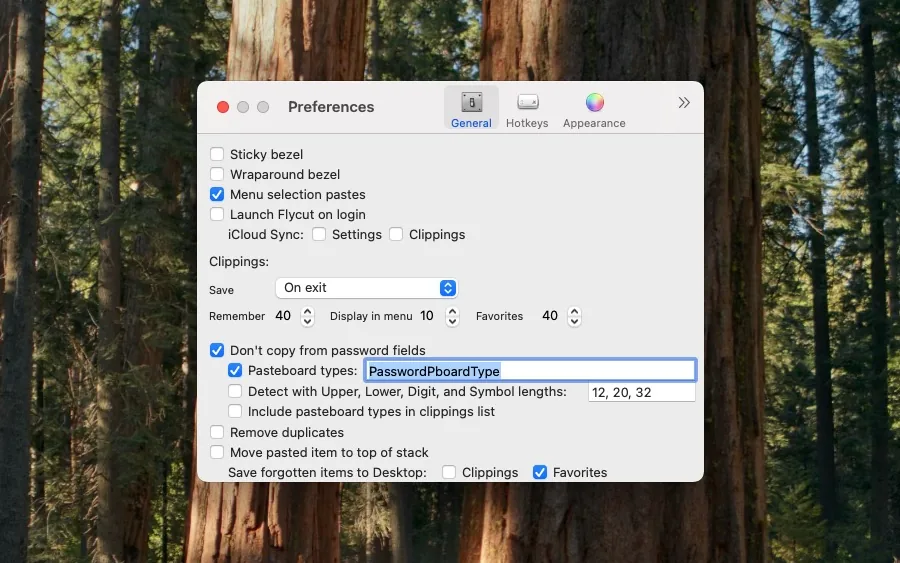
Step 10: Adjust the app to your needs.

Do you need a design?
Let us know

Contact us
Contact us
Semibold
Our workAboutContact
Services
Webflow design & developmentWebsite growth & maintenanceWordPress to Webflow migrationDesign maintenanceBranding
Know-how
TutorialsBlog
Other
Terms and conditions – GeneralTerms and conditions – RetainerPrivacy policyCookies
We are a
Webflow Certified Partner
in Czechia
We are part of Near & Dear